Showing posts with label Reset. Show all posts

Thursday, December 24, 2015

Reset Internet Explorer settings

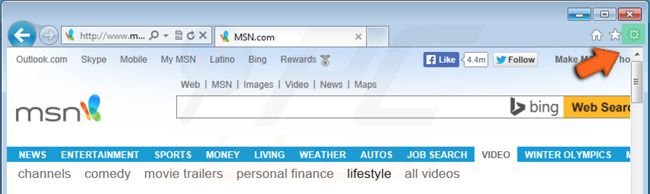
1. Open Internet Explorer and click on the "gear" icon (at the top right corner of Internet Explorer).
Internet Explorer settings reset clicking on gear icon
2. Select "Internet Options".
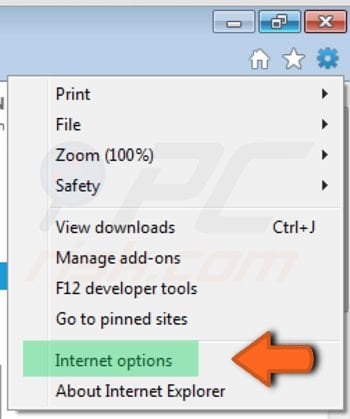
Internet Explorer settings reset clicking on Internet options
3. In the opened window select the "Advanced" tab.
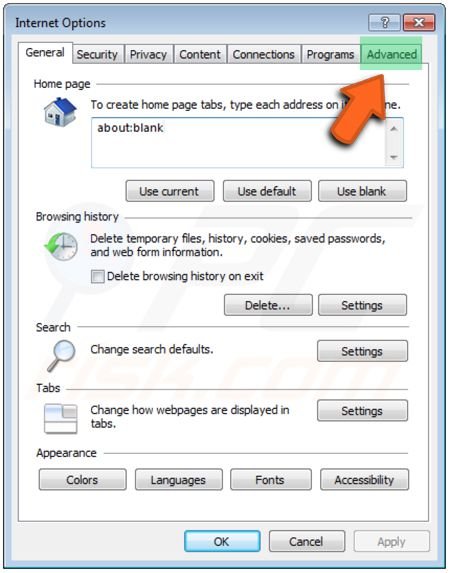
Internet Explorer settings reset Internet options advanced tab
4. In the "Advanced" options screen click on the "Reset" button.
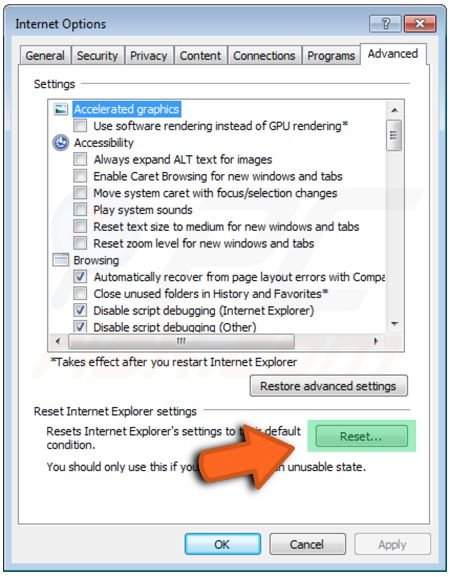
Internet Explorer settings reset button
5. In the opened window check the Delete personal settings box and confirm that you want to reset your Internet Explorer settings to default by clicking on a "Reset" button.
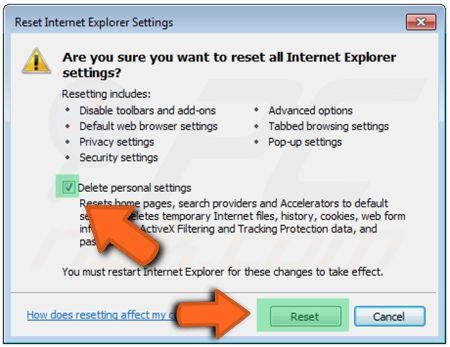
Internet Explorer confirm settings reset
6. Restart your Internet Explorer for changes to take effect.


How to Reset Firefox to its Default State

Click on the Menu option, and select the blue Help icon located at the bottom of the page:

Select the menu option that reads Restart with Add-ons Disabled:

A small menu will appear, asking you if you would like to Start in Safe Mode or Reset Firefox. Click on the Reset Firefox option:

Follow the onscreen procedure to restore your Firefox to its original settings:

Reset browser settings(Chrome)

After you have removed malicious programs from your computer, reset your Chrome browser settings. Your bookmarks and passwords won't change, but you'll need to customize things like your startup page, search engine, and browser theme again.

  1. In the top-right corner of the browser window, click the Chrome menu Chrome menu.
  2. Select Settings.
  3. At the bottom, click Show advanced settings.
  4. Under the section "Reset settings," click Reset settings.
  5. In the dialog that appears, click Reset.